DebugWare Book: Table of Contents
Friday, September 26th, 2008Here you can find the draft TOC for the forthcoming book “DebugWare: The Art and Craft of Writing Troubleshooting and Debugging Tools”:
- Dmitry Vostokov @ DumpAnalysis.org -
Here you can find the draft TOC for the forthcoming book “DebugWare: The Art and Craft of Writing Troubleshooting and Debugging Tools”:
- Dmitry Vostokov @ DumpAnalysis.org -
“Crash dumps are fossils”
Here is the draft TOC for the previously announced book Crash Dump Analysis for System Administrators and Support Engineers (Windows Edition) which I’m co-authoring with Thomas Monahan, a Lead Escalation Engineer at Citrix Systems:
- Dmitry Vostokov @ DumpAnalysis.org -
Another pattern that logically flows from Tool Chain is called Tool Box. Their principal difference is that the former launches subordinated tools in a sequence to reach the common goal and the latter is the tool that launches other tools in any sequence independently:
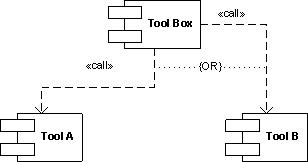
Often tool boxes are implemented as toolbars. Another boundary example is the so called resource kit tools where an HTML page or taskbar menu serves the role of tool box.
- Dmitry Vostokov @ DumpAnalysis.org -
Dealing with a problem today where NTSD failed to save a dump file either because of improper configuration for a default postmortem debugger or for other reasons I advised to use ADPlus from Debugging Tools for Windows in crash mode but found that I haven’t yet written about it. In the past I didn’t recommend ADPlus because no one wanted to install something extra on production environments.
I had to show how ADPlus works for crashes because the usual Microsoft article was too big for an immediate grasp:
How to use ADPlus to troubleshoot “hangs” and “crashes”
Here is the quick polished tutorial:
1. Download and install Debugging Tools for Windows appropriate for your application or service platform. For example, if your service is 32-bit but runs on x64 you need to download 32-bit package. Refer to http://www.windbg.org for quick download links.
2. Get ready for the test and download TesDefaultDebugger package.
3. Open a command prompt elevated as Administrator and cd to Debugging Tools for Windows installation folder.
4. Run ADPlus command:
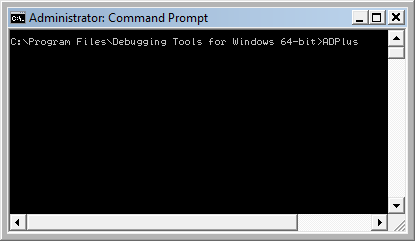
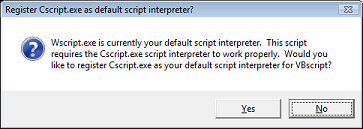
5. Skip any warnings related to script interpreter if any:
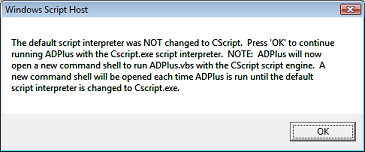
6. Another command line window appears with ADPlus switches:
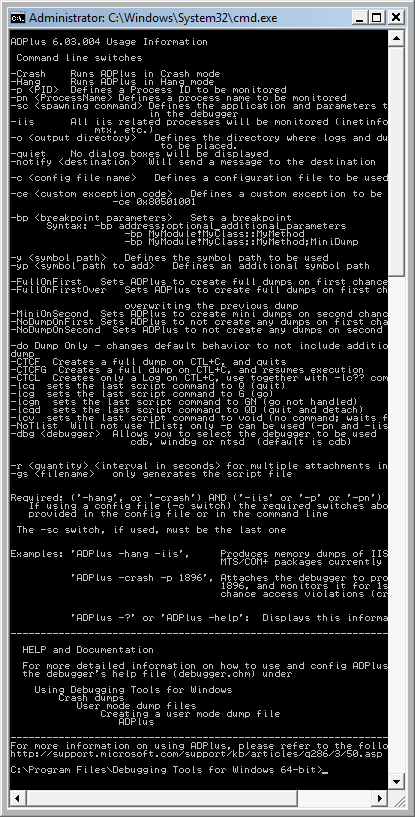
7. Close it, go back to the first command line window we used to launch-test ADPlus and type this command:
ADPlus -crash -pn TestDefaultDebugger64.exe
8. Skip warnings from step 5 if any and the symbol path warning if it appears too:
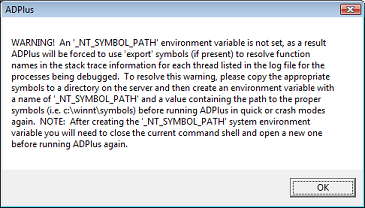
9. The second command line window is opened with the following expected output because we didn’t run TestDefaultDebugger64.exe:
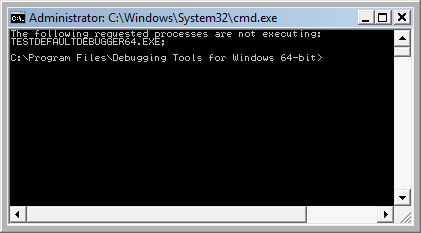
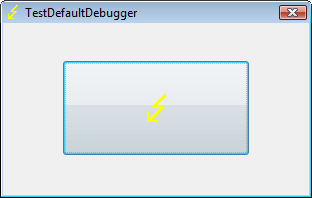
10. Close it and launch TestDefaultDebugger64.exe from the package downloaded in step 2:
11. Go back to the first command line window and repeat the command from step 7. You can also specify PID by -p <PID> instead of -pn <Name> option. Skip warnings from steps 5 and 8 if any and you would see the following message showing where ADPlus will store logs and memory dumps if any:
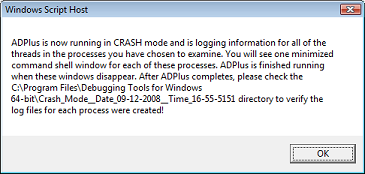
There are also 2 additional command line windows appear. One is showing which PID the debugger was attached to:
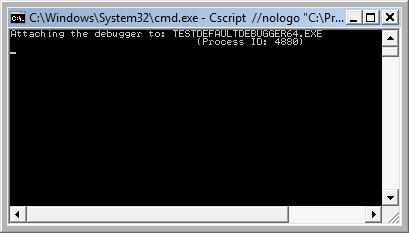
and the other showing the output of attached console debugger, CDB by default:
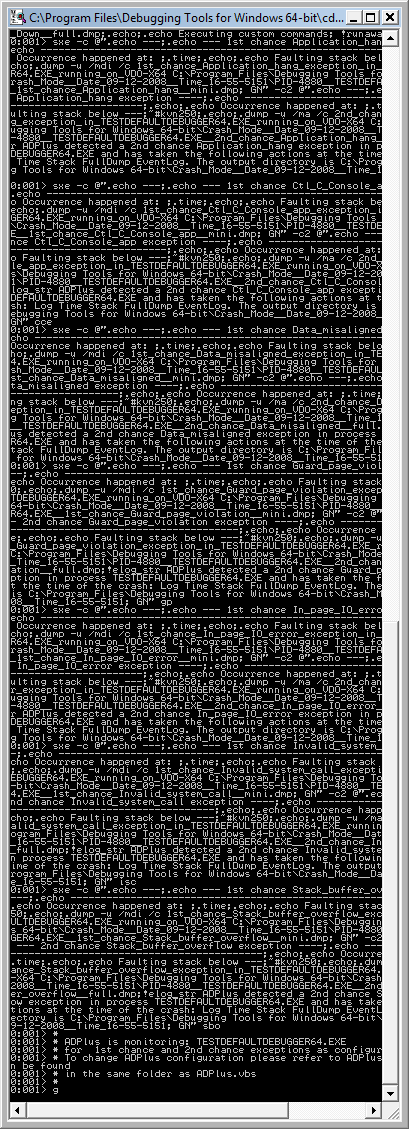
12. We can dismiss the message from the previous step and wait for the crash to occur when we push the big button on TestDefaultDebugger window from step 10. We see the crash instantaneously in debugger console window if it is still running:
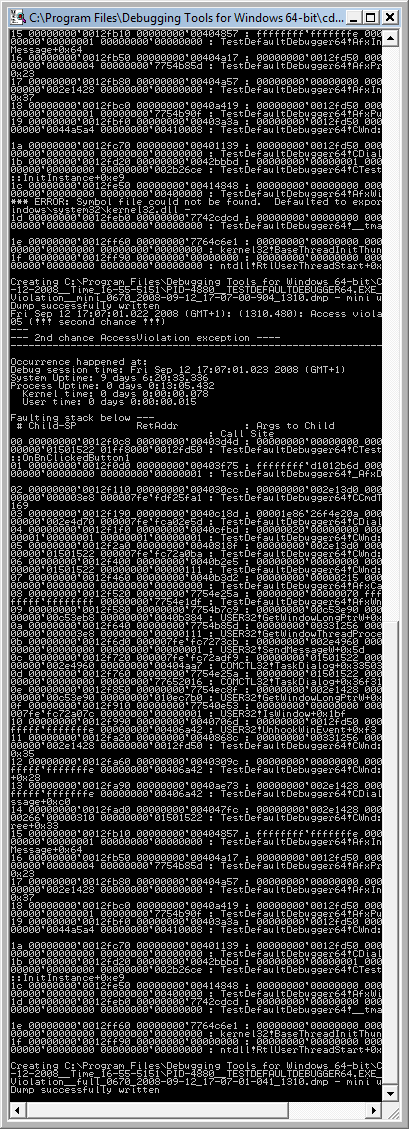
The following message box might appear and that depends on AEDebug registry key and WER settings which are beyond the scope of this post:
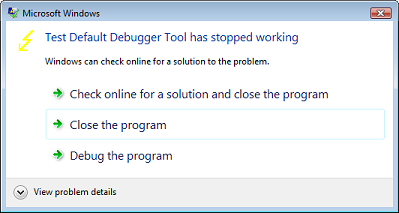
In case it appears you can simply choose to close the program.
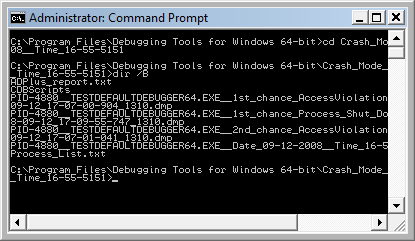
13. That’s it. All files appear in this folder:
C:\Program Files\Debugging Tools for Windows 64-bit\Crash_Mode__Date_09-12-2008__Time_16-55-5151:
- Dmitry Vostokov @ DumpAnalysis.org -
Usually after writing and using a tool we think about an extension of it or we find another tool that is suitable as that extension. In such cases it is better to reuse existing components and adapt the former tool to use the latter. Tool Chain is a good pattern name here. A programming analogy could be a compiler and linker:
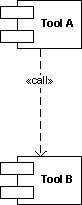
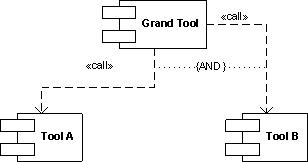
Typical example could be a logging tool that now acquires log viewer functionality by implementing a button that launches a separate log viewer or vice versa, a log viewer that can now do logging. Another simple example is a command file that launches different tools in a sequence. The tools might not be related by the data they produce and operate upon: this not the same as well-known architectural Filters and Pipes pattern. What is important is the fact that tools are related buy overall tool chain goal, for example, to debug problems by recording and analyzing log files or monitor some process activity and periodically create memory dumps:
- Dmitry Vostokov @ DumpAnalysis.org -
I discovered today that great IDA book was published last month:
The IDA Pro Book: The Unofficial Guide to the World’s Most Popular Disassembler

Curious about this published book I did some digging and finally ordered it because in the past I was always interested in knowing more about IDA after reading about it in some reverse engineering and disassembly books (more about them later) but was somewhat dissatisfied with IDA freeware version 4.3. The last argument in buying the book was my discovery that the new freeware version is available 4.9 which looks much better:
http://www.hex-rays.com/idapro/idadownfreeware.htm
I’ll keep investigating it for the purposes of memory dump analysis.
- Dmitry Vostokov @ DumpAnalysis.org -
This is already written application (10 years ago by me) that I’m adapting as a high-level interface to WinDbg (can be any GUI debugger actually). The basic idea revolves around floating buttons (listbox and task bar icons, optionally) that dynamically change with every new window or application. The number of buttons can be unlimited, they have tooltips and can be repositioned to any corner of the screen, they can play sounds, show video and pictures. On click they execute elaborated macro commands, including keystrokes and mouse movements, written in a special scripting language. For example, we can create buttons for CDA checklist.
I’ve created 2 buttons for WinDbg window:
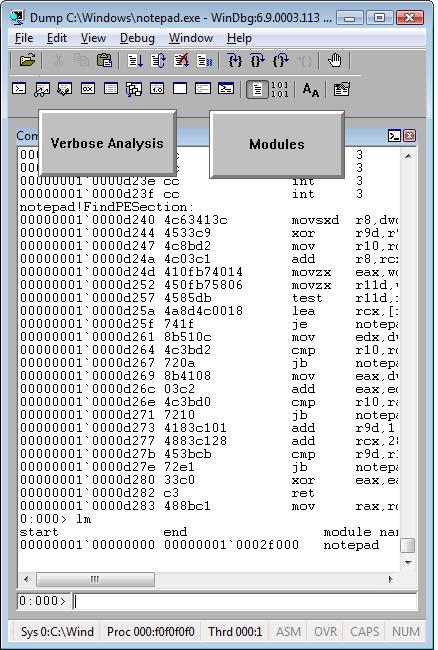
When we switch from WinDbg to another application they disappear:
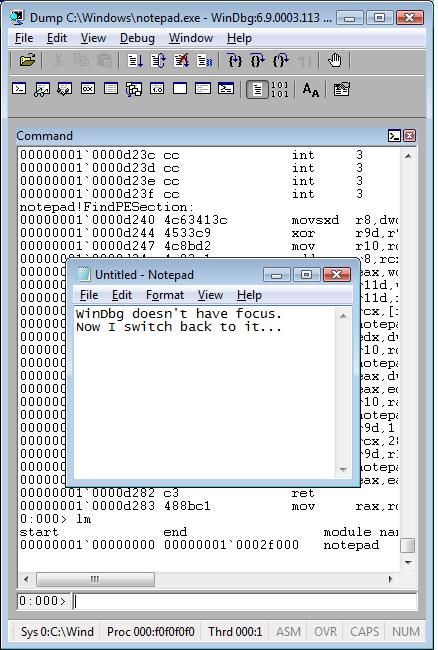
We switch back to WinDbg and they reappear. We can move them around the screen:
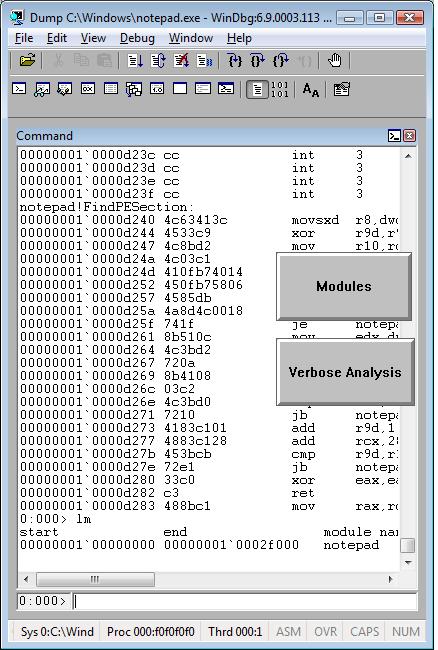
We can edit them by right click:

and change their shape:
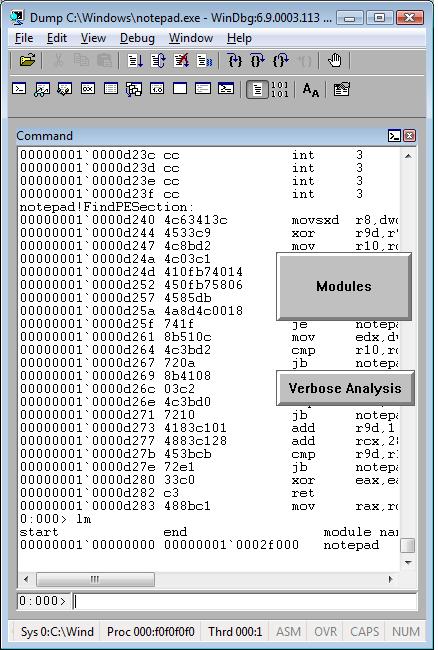
The set of buttons can be saved as an executable file. When we run it on another PC it recreates all buttons when WinDbg window appears.
Written in C and using only Win32 API EasyDbg process consumes minimum resources. It sits on task bar for easy access:

- Dmitry Vostokov @ DumpAnalysis.org -
Good troubleshooting tools usually have two interfaces: one is graphical (GUI) and the other is command line (CLI). The latter is very useful when GUI console is not available or there is a need to automate the tool. Both interfaces can be implemented in one component:
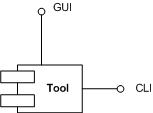
or there could be a separate GUI wrapper for complex CUI interface or when CUI interface was developed earlier and we don’t want to touch tool code (see Tool Façade pattern). Therefore this common pattern is called Dual Interface. Some tool examples:
- Dmitry Vostokov @ DumpAnalysis.org -
If you need the latest updates of Sysinternals tools you can always check this page:
and you can also map a drive to this location (it is done automatically via WebDAV redirector):
- Dmitry Vostokov @ DumpAnalysis.org -
Many products have lots of configuration parameters stored in OS configuration database, Windows registry. Some of parameters are internal and some are public but never exposed via product GUI or management consoles. Configuration parameters can be related to product functionality or can make troubleshooting and debugging easier, for example, additional tracing parameters to set the verbosity level of debugging output or enable additional safety checks. These parameters can be scattered across different registry branches or keys. Therefore another pattern frequently seen in troubleshooting and debugging tools is called:
Configuration Wrapper
Here excellent example is Microsoft tool:
- Dmitry Vostokov @ DumpAnalysis.org -
New version of StressPrinters tool is available that has a fix for the following bug:
When you run the tool it enumerates all installed printer drivers. When Citrix Universal Printer driver is found the enumeration procedure skips the rest of the list. This results in not showing all the drivers installed in Citrix terminal services environment.
You can download the new version from Citrix support website: CTX109374.
- Dmitry Vostokov @ DumpAnalysis.org -
Next pattern is called
Tool Façade (or Tool Facade)
It is used when there is a tool with a cumbersome interface like command line with many options and there is a need for a better and easier to use interface, for example, GUI. This can be illustrated on the following UML component diagram:
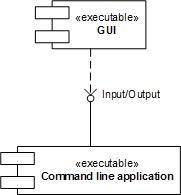
Excellent example of this pattern is:
designed as a GUI wrapper around command line tool AddPrinter. Adding the powerful GUI interface allowed to extend its functionality and even find new domains, like testing, where the tool can be used. Excellent information about this tool can be found in the article:
Understanding and using Citrix StressPrinters
- Dmitry Vostokov @ DumpAnalysis.org -
These are patterns for troubleshooting and debugging tools: solutions for common recurrent problems. Forthcoming book
DebugWare: The Art and Craft of Writing Troubleshooting Tools
which I’m writing with Kapildev Ramlal, the author of several Citrix tools, will discuss them in sufficient detail. The first pattern is named:
API Query
Software products use various API and external interfaces to query data or get notifications from operating system environment. Their behaviour depends on API return values or output parameters that are not always logged or logged with insufficient detail. In order to reproduce or diagnose problems an engineer can write a small API Query tool that will periodically or asynchronously query the same set of API and log their input and output data. If the problem happens with the product at some point this additional log will help in problem identification and resolution.
Examples:
I’ve set up a dedicated page for DebugWare patterns:
http://www.dumpanalysis.org/blog/index.php/debugware-patterns/
- Dmitry Vostokov @ DumpAnalysis.org -
Sometimes ETW (or CDF) traces can be really huge. Unless we trace the elusive but the specific error we already know about, there is no need to make such traces if we can reproduce the issue. My favourite example is connectivity problems when you cannot connect to a terminal server. The best way is to start tracing, try to connect, get an error and stop tracing. Usually it takes no more than a couple of minutes. We can even trace all modules here just to make sure that we don’t miss anything. It is also better to focus on one specific scenario per one lean trace instead of packing several of them into one big trace.
- Dmitry Vostokov @ DumpAnalysis.org -
I’m thinking big for a full-color book to celebrate the forthcoming anniversary of Memory Dump Analysis Anthology. Preliminary details:
- Dmitry Vostokov @ DumpAnalysis.org -
Due to a request I opened AERA subforum:
http://www.dumpanalysis.org/forum/viewforum.php?f=29
Everyone is welcome to comment and add thoughts.
IBCDAS code name has been changed to AERA 
- Dmitry Vostokov @ DumpAnalysis.org -
Continuing Music for Debugging post I would like to recommend the following album that I used to listen to long time ago and have just found buried in the old corner. In it various movements correspond to different debugging sessions, some glorious and some filled with tension and worries, gradually building up the ultimate problem resolution. I think almost all Vangelis music is very suitable to accompany debugging.

- Dmitry Vostokov @ DumpAnalysis.org -
A small note from the field. Sometimes on x64 Windows platform we set a default postmortem debugger or configure WER and then install Microsoft Application Verifier to do some checks. However no crash dump files are saved. The reason for this might be that we installed and configured amd64 bit version of Application Verifier but the problem application was 32-bit. For this application we need to install and configure x86 version of Application Verifier.
- Dmitry Vostokov @ DumpAnalysis.org -
PubForum pictures are available where you can see me selling Crash Dump Tools to the audience and explaining broken clipboard chains:
All presentations from that event are available here:
My presentation is also available here:
Citrix Tools: PubForum Presentation
- Dmitry Vostokov @ DumpAnalysis.org -
Here is the presentation PDF file:
Citrix Tools - everything you need for troubleshooting, optimization and analysis
It is based on my previous presentation with a few added slides which can be downloaded from Citrix support web site:
Selected Citrix Troubleshooting Tools
- Dmitry Vostokov @ DumpAnalysis.org -

