Archive for the ‘Tools’ Category

userdump.exe on x64

Wednesday, October 25th, 2006

If you install the latest Microsoft user mode process dumper on x64 Windows you would see both x86 and x64 folders. 

Advice: do not dump 32-bit applications and services (shown as *32 in Task Manager) using userdump.exe from x64 folder: use userdump.exe from x86 folder. 32-bit application runs in WOW64 emulation layer on x64 Windows and that emulation layer is itself native 64-bit process so x64 userdump.exe saves that emulation layer not your original 32-bit application. If you open that dump in WinDbg you would see WOW64 thread stacks not thread stacks from your original 32-bit application. 

In summary, on x64 Windows

to save a dump of 64-bit application use:

  • x64\userdump.exe
  • \Windows\System32\ntsd.exe
  • 64-bit version of WinDbg.exe

to save a dump of 32-bit application use:

  • x86\userdump.exe
  • \Windows\SysWOW64\ntsd.exe
  • 32-bit WinDbg.exe  

- Dmitry Vostokov -
Summary of Troubleshooting Tools

Monday, October 23rd, 2006

I’ve just found this very good article on Citrix support web site and I see it was recently updated reflecting new tools written at Citrix or discovered since its previous publication a year ago:

Troubleshooting Tools for Citrix Environments

- Dmitry Vostokov -
NTSD on x64 Windows

Monday, October 23rd, 2006

If you need to attach NTSD to a process on x64 Windows and to save a dump remember that there are two versions of NTSD: x86 (32-bit) and x64. The former is located in \Windows\SysWOW64 and should be used for attaching to 32-bit applications and services. IMA service, for example, is 32-bit in Citrix Presentation Server for x64, so if it hangs you need 32-bit debugger. For explanation why you need different versions of NTSD please refer to the first picture in my previous post: Dumps, Debuggers and Virtualization 

If you use WinDbg for that purpose install both 32-bit and 64-bit versions.

If you want to install NTSD or WinDbg as a default postmortem debugger use Wow6432Node registry hive:

HKEY_LOCAL_MACHINE\SOFTWARE\Wow6432Node\Microsoft\Windows NT\CurrentVersion\AeDebug

Debugger = ntsd -p %ld -e %ld -g -c ".dump /ma /u c:\TEMP\new.dmp; q"

Refer to the following Citrix support articles explaining and describing in more detail how to set NTSD and WinDbg as default postmortem debuggers:

How to Set NTSD as a Default Windows Postmortem Debugger

How to Set WinDbg as a Default Windows Postmortem Debugger

They will be updated soon to include WOW64 information.

- Dmitry Vostokov -

Easter Egg

Sunday, October 22nd, 2006

As I promised in the announced Troubleshooting Tool Ideas post you can download from my personal website for free the Demo Tool with an Easter Egg inside:

Demo Tool

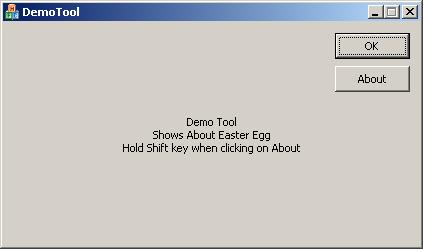
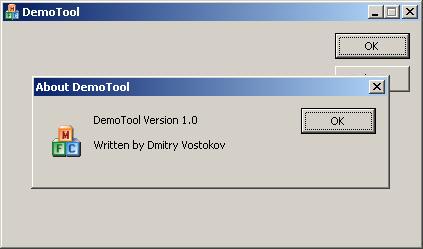
If you run it you will see the tool window:

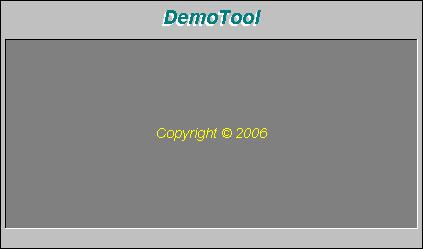
If you click on “About” button the normal “About DemoTool” dialog box appears:

However if you hold “Shift” key when clicking on “About” button an Easter Egg appears: the main tool window transforms into graphical surface where all contributors and developers are shown and scrolled up and the tool name is animated. There is also “Special Thanks” section in the list.

All future and updated tools will include this Easter Egg feature.

Some history: the source code for this Easter Egg was written in 1992 for Windows 3.1 and in 1995 I ported it to Windows 95. It still works on Windows 2000/XP/2003 without any modifications. In 2006 I ported it to Windows Mobile.

- Dmitry Vostokov -

Dump Monitor Suite

Sunday, October 22nd, 2006

Following the announced Troubleshooting Tool Ideas database Ramzy Mansour from Citrix Technical Support came up with a brilliant idea about Dump Monitor Suite and its two useful components for Citrix administrators:

DumpStats:

- Monitors and displays a graphical chart showing which services and processes crashed or hanged on an individual Citrix server, their crash time and date, dump location, dump type, crash signature, modules where crashes happened, etc.

- Aggregates and displays statistics for the whole Citrix farm

DumpAlerts:

- Sends an e-mail alert and/or an SMS message to a cell phone when any crash or hang happens

- Configures alerts based on severity and specific processes

Additionally Dump Monitor Suite will include the following components (some of them already exist and will be enhanced):

DumpChecks

- Enhanced and improved version of Citrix DumpCheck Explorer extension and its command line version

DumpProperties:

- New Explorer extension (Properties dialog) which shows various data extracted from a dump, like process name, module list, whether heap checking was enabled, module name where crash happened, etc.

DumpDepends:

- Integrated and enhanced version of SystemDump which allows to dump dependent processes

We are currently finalizing functional specs and architecture. More information about this Suite will be posted soon.

- Dmitry Vostokov -

Dump Tomography

Sunday, October 22nd, 2006

There is an idea to interpret a process or a system dump as a picture (similar to interpreting it as a giant wave file: Dump2Wave). I would like to extend this idea and present it as a Dump Tomography - a combination of images taken from a dump when looking at it from different perspectives - memory, resources, subsystem hierarchy, etc. I’m going to include some simple pictorial interpretations and representations in forthcoming DumpPlayer.

Dump Analysis becomes both Medicine and Art. You can finally hear how corruption sounds and how it looks :-)

- Dmitry Vostokov -

Musical Dumps: Dump2Wave

Sunday, October 22nd, 2006

Dump2Wave command line tool is available for free download:

Download Dump2Wave

Simply run it from the command prompt and specify full paths to dump file and output WAV file. Dump file will be converted by default into 44.1KHz 16bit stereo WAV file (CD quality). You can specify you own conversion parameters like samples per second (22050, 11025, etc), bits per sample (8 or 16) and the number of channels (1 - mono, 2 - stereo):

For example, I converted sndrec32.dmp to sndrec32.wav:

The dump was taken after sndrec32.exe played “Windows XP Logon Sound.wav” file from \Windows\Media folder and that wave file was originally sampled as 22050Hz 16bits stereo. By listening to sndrec32.dmp I was able to hear a fragment from that logon sound because it was stored in a buffer inside sndrec32.exe process.

Note: Dump2Wave will not convert a dump file which is greater than 4Gb. Forthcoming DumpPlayer will be able to play large complete memory dumps in real-time without conversion and you could graphically choose a region to play.

Just a reminder on how you can save a dump manually (unless you have a dump from application crash or BSOD):

Dumping Processes Without Breaking Them

Microsoft User Mode Process Dumper

How to Attach NTSD to a Process and Save a Dump

How to Attach WinDbg to a Process

- Dmitry Vostokov -

Musical Dumps

Wednesday, October 18th, 2006

After listening to “An Anthology of Noise and Electronic Music”

Buy from Amazon

Buy from Amazon

Buy from Amazon

Buy from Amazon

and remembering that long time ago I was asked to convert stock charts into sound waves an idea came to me to convert memory dump files into WAV files by appending an appropriate header in front of them. So depending on imposed sampling frequency (Hz), quantization level (bits) and mono/stereo settings you can enjoy listening to dumps. Long time ago I wrote a component for hard-disk recording while working on my voice recognition projects and I’m going to reuse it now.

Forthcoming DumpPlayer will be released this weekend for free download so stay tuned. 

If it goes well I promise to write a WinDbg extension to listen to a given memory range.

- Dmitry Vostokov -

Forthcoming new tool: ProcessHistory

Sunday, October 15th, 2006

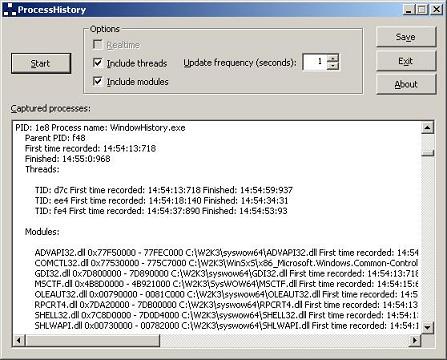
New addition to “History” toolbox: ProcessHistory. It has similar GUI interface as WindowHistory and MessageHistory:

ProcessHistory tracks process creation and exit, thread creation and termination and also modules (DLL, OCX, etc.) and their loading and unloading.

The tool has 2 executables: ProcessHistory.exe for 32-bit platforms and ProcessHistory64.exe for 64-bit platforms. In fact, you need both for your 64-bit platform if you want to track modules: if your application is 32-bit ProcessHistory.exe will correctly show loaded and unloaded 32-bit modules whereas ProcessHistory64.exe will only show WOW64 components.

I’m already working on the next version 2.x which can record changes in real-time and I’m also porting the current version to Windows CE and Windows Mobile.

- Dmitry Vostokov -

Troubleshooting tool ideas

Saturday, October 14th, 2006

If you have any troubleshooting or debugging tool idea you can post a comment here, write to me (if you know my Citrix e-mail) or simply drop a message to my personal address.

Full credit and thank you note will be given in About dialog box if I implement the idea. I already developed a nice component for that purpose. Demo will be posted soon.

I write most of my tools using C++/STL/MFC/Win32 API and occasionally plain C (for device drivers). Most of them are released in both 32-bit and 64-bit versions and occasionally ported to Windows Mobile. Written tools don’t carry .NET baggage with them although I plan to utilize managed C++ in future MFC-based tools if certain .NET functionality is required.

Thank you!

- Dmitry Vostokov -

Crash Dumps for Dummies (Part 2)

Saturday, October 14th, 2006

Part 2 follows the discussion of various dump types depicted here: Dumps for Dummies (Part 1) 

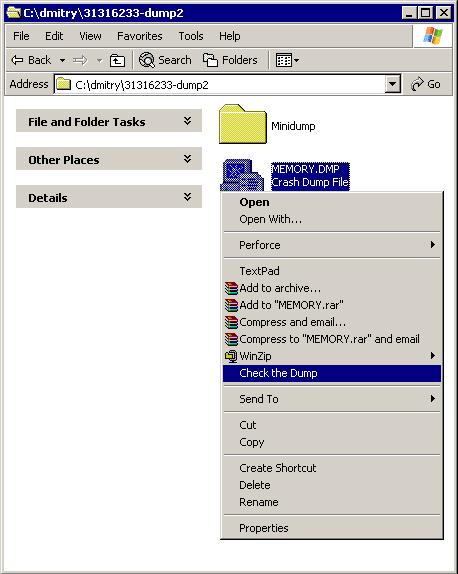
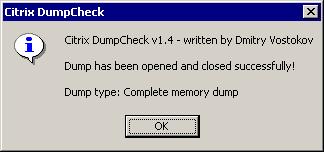
So the question arises: how to make sure the customer got the right dump? And if the dump type is not what you asked for provide a recommendation for further actions. Troubled with such questions during my first years in Citrix technical support I decided to develop a lightweight Explorer extension and a command line version of dump checking tool called Citrix DumpCheck:

Here it does basic checks for dump validity and shows the dump type: Complete memory dump

If it found small mini dump type (64Kb) the tool would have suggested to change settings in Control Panel.

The extension can be downloaded from Citrix support web site:

Citrix DumpCheck Explorer Extension version 1.4 

FAQ:

Q. Is it possible to show more information like process name in a user dump or whether full page heap was enabled?

A. Certainly it is possible to include. However it requires access to OS symbol files during runtime and most customers don’t have them installed or downloaded from MS symbol server. So the design decision was not to include these checks in version 1.x. I consider to include this in next versions 2.x.

Q. The customer doesn’t want to modify environment by installing extension. Is there any command line version of this tool?

A. Yes, there is. The following article contains a download link to a command line version of Citrix DumpCheck:

Citrix DumpCheck Utility (Command Line) version 1.4   

Q. Does this extension work in 64-bit Windows?

A. No, but you can use command line equivalent shown in the answer to the previous question. Also I’m planning to port this extension to 64-bit soon and will announce as soon as I release it.

- Dmitry Vostokov  @ DumpAnalysis.org -

Quiz: 32/64 = ?

Tuesday, October 10th, 2006

Q: What proportion of Citrix customers uses 64-bit server environment?

Hint: search Citrix support web site but don’t run complex search queries - think Citrix tools

A: If we look at download counts for two Citrix tools ADSCleaner and WindowHistory which were published separately for 32-bit and 64-bit platforms but at the same time (links might require free registration):

http://support.citrix.com/kb/category.jspa?categoryID=682 

ADSCleaner 2.0  - 299 downloads

ADSCleaner64 2.0 (for x64 platforms)  - 33 downloads

WindowHistory 2.1  - 140 downloads

WindowHistory64 2.1 (for x64 platforms)  - 31 downloads

So we have approximately 10 - 20% of Citrix customers using 64-bit environments. 20% is the upper limit. What about lower limit? Let’s look at another published tool:

Repair CBD Chain  - 4282 downloads

RepairCBDChain64  - 60 downloads

Therefore the lower limit is less than 2%.

Conclusion: 2 - 20% of Citrix customers use 64-bit environments :-)

- Dmitry Vostokov -

WinDbg as a big calculator

Tuesday, October 3rd, 2006

Noticed as one engineer was frequently switching between WinDbg and Calc. Forget about using calc.exe during debugging or dump analysis sessions. Save your valuable time. Don’t multiprocess. Use ? and .formats commands:

0:000> ? 2 + 2
Evaluate expression: 4 = 00000004
0:000> .formats 4
Evaluate expression:
  Hex:     00000004
  Decimal: 4
  Octal:   00000000004
  Binary:  00000000 00000000 00000000 00000100
  Chars:   ....
  Time:    Thu Jan 01 00:00:04 1970
  Float:   low 5.60519e-045 high 0
  Double:  1.97626e-323

Now you can do your finance calculations in WinDbg too.

The WinDbg Way!

- Dmitry Vostokov -

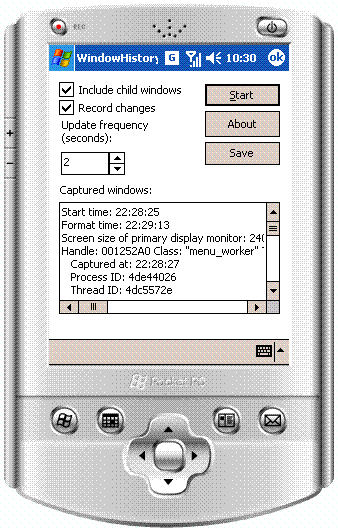
WindowHistory Mobile

Friday, September 15th, 2006

During development of one of my projects for Windows Mobile I needed full information about windows on my pocket PC devices. I needed that information gathered in real-time and when I was not connected to my host PC so I couldn’t use remote SPY++ from MS Windows CE tools. The decision was to port existing Citrix WindowHistory tool to Windows CE. It worked well and I tested it on Windows Pocket PC 2003 emulator and on real devices running Windows Mobile 5.0 (Acer n300 and mobile phone Mio A701 both have ARM processors). It should work on any other mobile device powered by ARM/XScale processor.

- Dmitry Vostokov -

Spying window messages: MessageHistory

Wednesday, September 13th, 2006

Finally Citrix has got its own troubleshooting tool for capturing window messages. It is similar to what SPY++ does but more easy to use especially in a customer environment. Existing tools are useful for developers focusing on specific product where they know its internals or in the process of debugging. Customers and technical support need something different. From my experience, existing tools require too much effort for a customer who sees and tries to use them for the first time. On the other hand technical support needs good traces where nothing has been left out. So I sat down at my 64-bit workstation and spent weekend to develop this lightweight tool to let customers do minimum and record everything and thus avoid usual turnaround in technical support cases requiring capturing messages and at the same time simplify trace analysis (at least for myself). 

While developing this tool I discovered its major feature: ability to capture all messages from 64-bit applications (in addition to messages from 32-bit applications). All existing tools I could find capture messages from 32-bit application only.

You can download MessageHistory for free from Citrix support web site (requires free registration):

MessageHistory

Check out also Citrix WindowHistory for 32-bit and WindowHistory for 64-bit platforms.

Currently I’m developing a presentation/class: “Understanding windows and messages: peering inside Citrix troubleshooting tools and their log files (WindowHistory and MessageHistory)”

Further plans are to develop more tools to track the history of various system events (in addition to windows and messages) and finally develop a toolbar to integrate all of them. 

- Dmitry Vostokov -

New SystemDump tool

Tuesday, September 12th, 2006

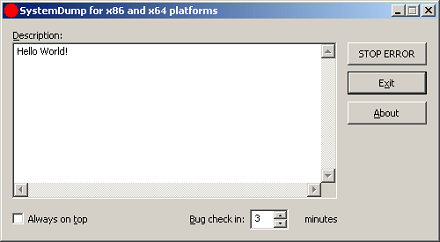
Not really new as it was previously called CtxBSOD v2.1 but was renamed to better show its purpose. In addition to renaming I added a command line option to dump a system remotely or from a command line locally without using its GUI interface. The main motivation for me to write this tool was the absence of similar tools for 64-bit Windows. SystemDump can dump a 64-bit server too! 

You can download it form Citrix support web site (requires free registration):

http://support.citrix.com/article/CTX111072

Main features:

  • The tool has both GUI and command line interfaces.
  • You can type a message/text (or copy it from clipboard) before forcing a memory dump. This message is saved in a dump and a support engineer can read it after loading the dump in WinDbg.exe. This is implemented to encourage writing the symptoms and conditions explaining why the dump has to be forced.
  • The tool can stay on top of any window (if you need this to quickly dump the server after a reproduction or during the process of an activity).
  • It is supplied with Program Database (PDB) symbols for the driver (32-bit and 64-bit) which is useful when you want to have all symbols present on the bugcheck thread.
  • The bugcheck clearly shows that the dump is manually generated.
  • The tool can force a memory dump on both 32-bit and 64-bit platforms.
  • Before forcing a fatal error on a server, the tool warns about potential damaging consequences: Users are disconnected and all the data which is not saved will be lost. It asks for a confirmation.
  • You can specify a period of time (in minutes) when to force a memory dump.

The latter feature is implemented entirely in kernel. Additional command that not covered in the article is

>SystemDump.exe abort

allows you to abort the action if you ran the tool using command line options.

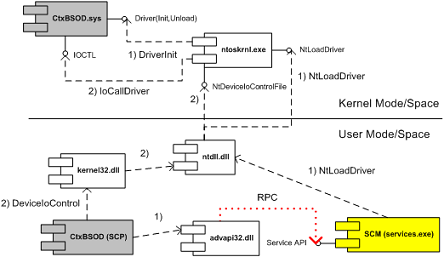
I attached the UML component diagram showing the architecture of this tool. I recently developed a presentation about device drivers architecture and Citrix kernel drivers where I used this tool as one of examples.

systemdumparchitecture.jpg

- Dmitry Vostokov -

Deadlocks and critical sections

Sunday, September 10th, 2006

Still playing with WinDbg scripting and applying them to dump analysis. The following script will uncover deadlocks and critical section contention in user mode processes (including services) if you run it against complete memory dump:

$$
$$ List owned critical sections in user processes
$$
r $t0 = nt!PsActiveProcessHead
.for (r $t1 = poi(@$t0); (@$t1 != 0) & (@$t1 != @$t0); r $t1 = poi(@$t1))
{
    r? $t2 = #CONTAINING_RECORD(@$t1, nt!_EPROCESS, ActiveProcessLinks);
    .process @$t2
    .reload
    !ntsdexts.locks
}

To run it save in a file and use the following command in WinDbg: $$><script.txt 

- Dmitry Vostokov -

Exploring Kernel Memory Space Analyzer

Thursday, September 7th, 2006

It takes approximately 10 - 30 minutes to process an average 2Gb complete memory dump. After loading couple of dumps I found the following useful features so far:

  • You can save analysis tree in a file and open it later for further analysis (but you need to keep dump file too)
  • Wait chains might be useful. However the tool reports too many of them (608 in my dump). They are sorted by length so it might be useful in detecting lengthy chains
  • It also detects anomalous (corrupt) critical sections in user processes
  • It detects deadlocks (you don’t need to enable driver verifier and reboot the system to get a new dump)

I’m currently using this tool with every memory dump I get and will post interesting cases.

- Dmitry Vostokov -

Yet another WinDbg script

Thursday, September 7th, 2006

I got a dump with 30 IE processes running and I want to find the only one waiting for a specific function. I know there is one. The following script lists all processes and their stacks (of course, I already opened a log in WinDbg to save that huge amount of output):

$$
$$ List user processes and stacks
$$
r $t0 = nt!PsActiveProcessHead
.for (r $t1 = poi(@$t0); (@$t1 != 0) & (@$t1 != @$t0); r $t1 = poi(@$t1))
{
    r? $t2 = #CONTAINING_RECORD(@$t1, nt!_EPROCESS, ActiveProcessLinks);
    .process @$t2
    .reload
    !process @$t2
}

- Dmitry Vostokov -

Kernel Memory Space Analyzer

Wednesday, September 6th, 2006

Microsoft has released this tool to help analyze memory dumps. I’m currently evaluating it and post my opinion later. Seems to be pretty cool tool according to its description and PPT presentation which you can download here:

Kernel Memory Space Analyzer

You need to manually copy x86 folder from kktools to your Debugging Tools for Windows folder and run kanalyze.exe from there. Refer to PPT presentation for details.

- Dmitry Vostokov -