ADPlus in 21 seconds and 13 steps
Friday, September 12th, 2008Dealing with a problem today where NTSD failed to save a dump file either because of improper configuration for a default postmortem debugger or for other reasons I advised to use ADPlus from Debugging Tools for Windows in crash mode but found that I haven’t yet written about it. In the past I didn’t recommend ADPlus because no one wanted to install something extra on production environments.
I had to show how ADPlus works for crashes because the usual Microsoft article was too big for an immediate grasp:
How to use ADPlus to troubleshoot “hangs” and “crashes”
Here is the quick polished tutorial:
1. Download and install Debugging Tools for Windows appropriate for your application or service platform. For example, if your service is 32-bit but runs on x64 you need to download 32-bit package. Refer to http://www.windbg.org for quick download links.
2. Get ready for the test and download TesDefaultDebugger package.
3. Open a command prompt elevated as Administrator and cd to Debugging Tools for Windows installation folder.
4. Run ADPlus command:
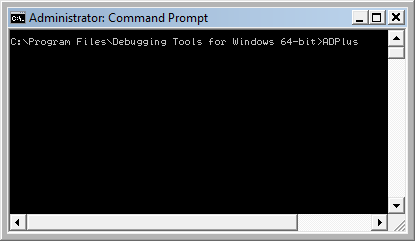
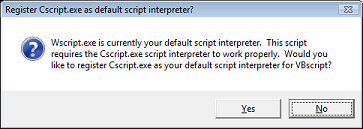
5. Skip any warnings related to script interpreter if any:
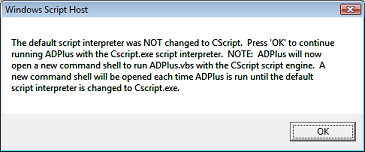
6. Another command line window appears with ADPlus switches:
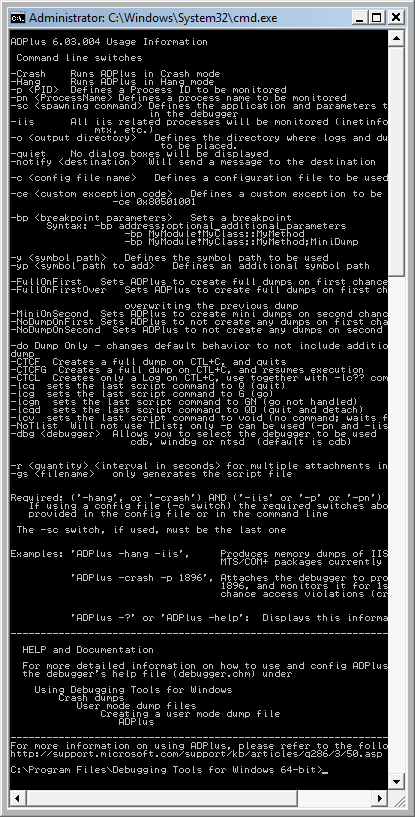
7. Close it, go back to the first command line window we used to launch-test ADPlus and type this command:
ADPlus -crash -pn TestDefaultDebugger64.exe
8. Skip warnings from step 5 if any and the symbol path warning if it appears too:
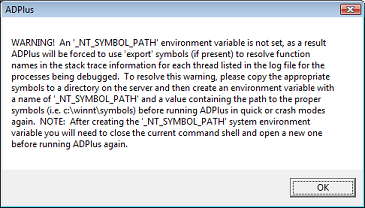
9. The second command line window is opened with the following expected output because we didn’t run TestDefaultDebugger64.exe:
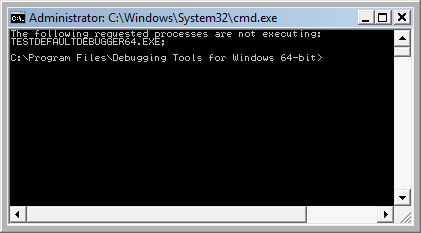
10. Close it and launch TestDefaultDebugger64.exe from the package downloaded in step 2:
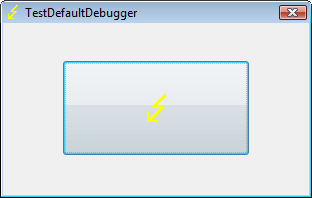
11. Go back to the first command line window and repeat the command from step 7. You can also specify PID by -p <PID> instead of -pn <Name> option. Skip warnings from steps 5 and 8 if any and you would see the following message showing where ADPlus will store logs and memory dumps if any:
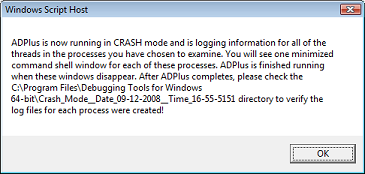
There are also 2 additional command line windows appear. One is showing which PID the debugger was attached to:
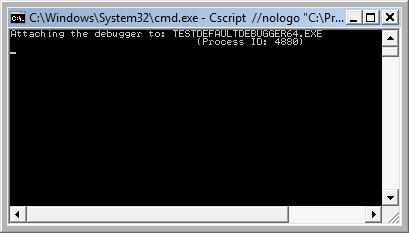
and the other showing the output of attached console debugger, CDB by default:
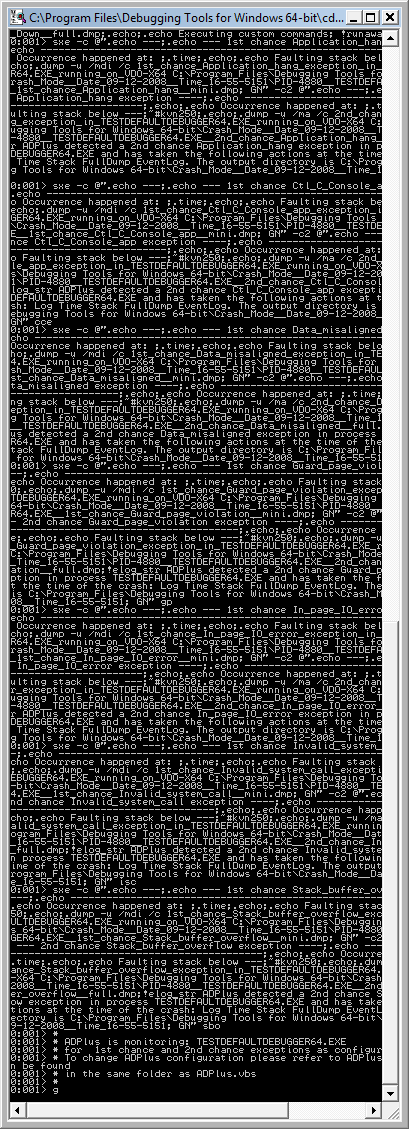
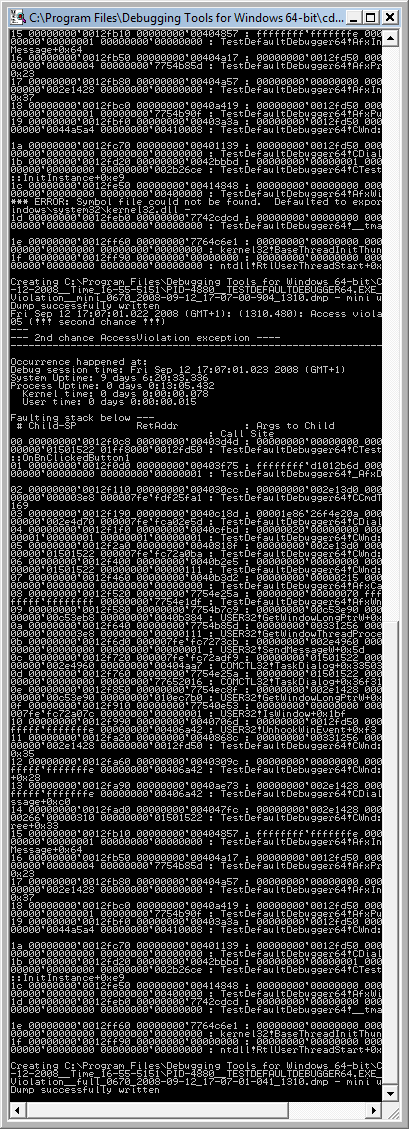
12. We can dismiss the message from the previous step and wait for the crash to occur when we push the big button on TestDefaultDebugger window from step 10. We see the crash instantaneously in debugger console window if it is still running:
The following message box might appear and that depends on AEDebug registry key and WER settings which are beyond the scope of this post:
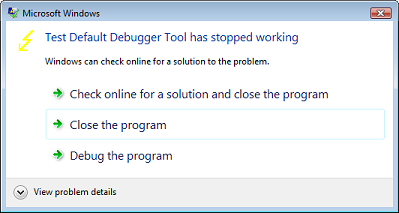
In case it appears you can simply choose to close the program.
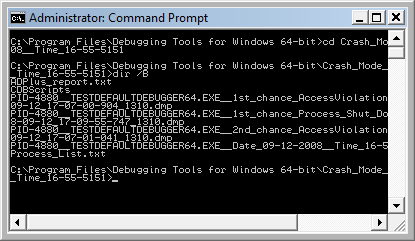
13. That’s it. All files appear in this folder:
C:\Program Files\Debugging Tools for Windows 64-bit\Crash_Mode__Date_09-12-2008__Time_16-55-5151:
- Dmitry Vostokov @ DumpAnalysis.org -
 This morning it arrived in post and I’m looking forward reading it during my lunch time. Anthology books are well suited for such breaks because articles are not long and usually self sufficient to learn about something discrete: