In this part we see how we can load memory dumps into ParaView data analysis and visualization system. First we need to download the latest version from here. If we have a memory dump we need first to calculate its dimensions and for a square we can use this simple formula: (int)sqrt(file_size/4). For example, the dump file I use here has the size of 1,746,853 bytes, therefore we have 660×660.
1. Launch ParaView:
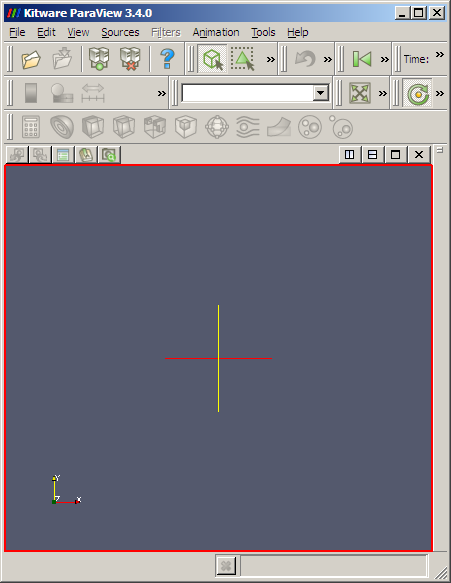
2. Go to File \ Open and select All Files (*.*) and choose your .dmp file. The following dialog appears:
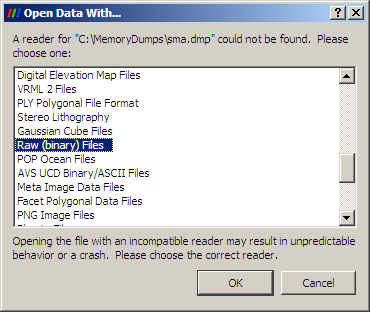
Choose Raw (binary) Files option.
3. If nothing changes on the screen go to View menu and select Object Inspector. The following panel should appear:
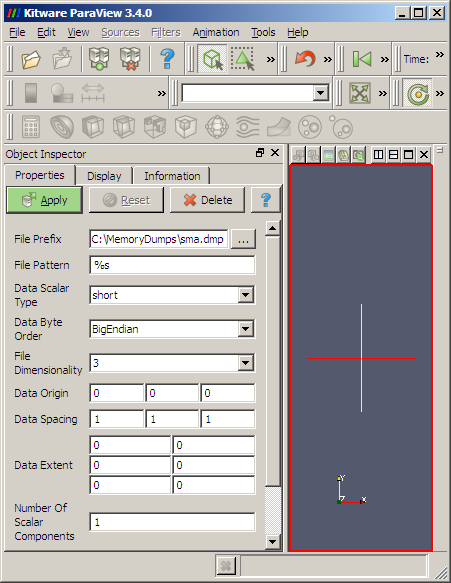
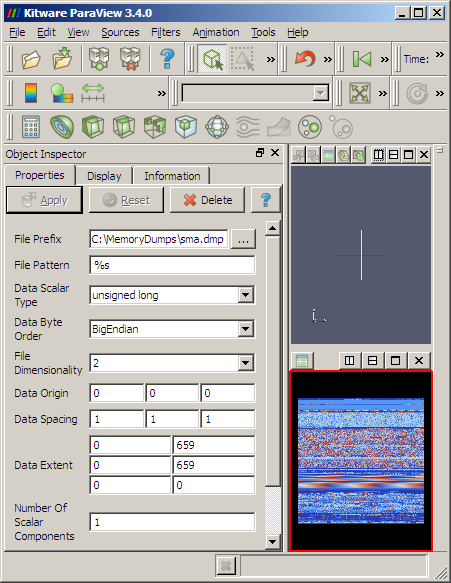
4. Here we should carefully specify parameters for our dump file:
Data Scalar Type: unsigned long
File Dimensionality: 2
Data Extent:
0 659
0 659
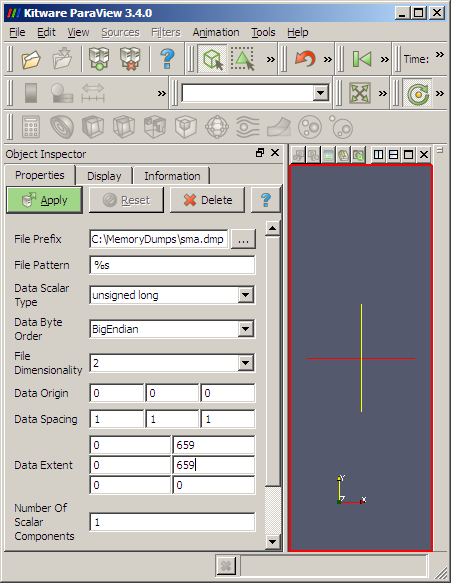
5. We then Apply and get the dump loaded:
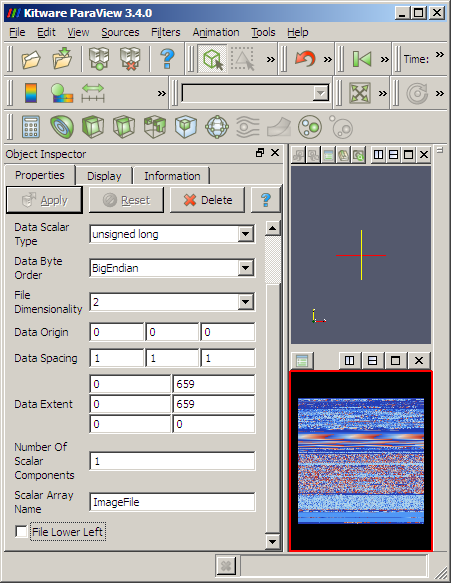
6. We might want to uncheck File Lower Left at the bottom of the Object Inspector properties to get lower memory addresses start from the left-top corner of the image:
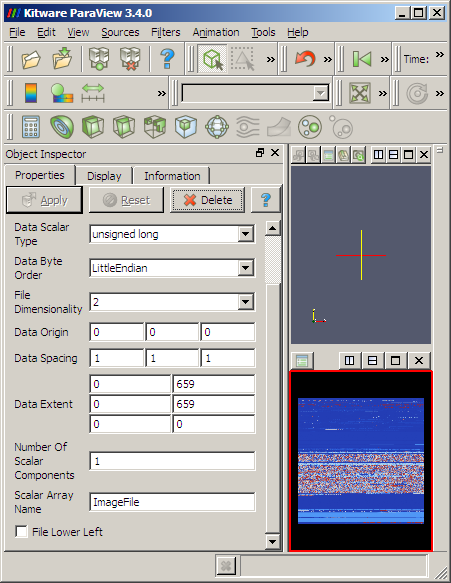
7. Also Data Byte Order LittleEndian obviously changes the color of RGB triplets or RGBA quadruplets but the large scale structure remains the same:
8. We can select View \ Show Color Legend to see how unsigned long values from the dump file are mapped continuously to colors:
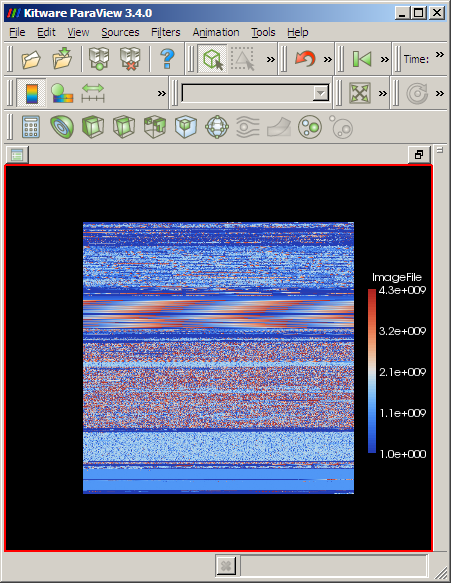
I prefer to choose BigEndian because we get similar layout as we get from ImageMagick RGBA conversion or from Dump2Picture:

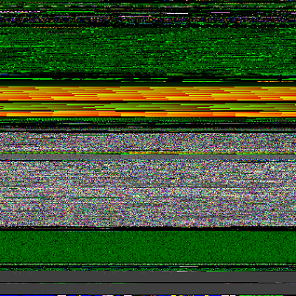
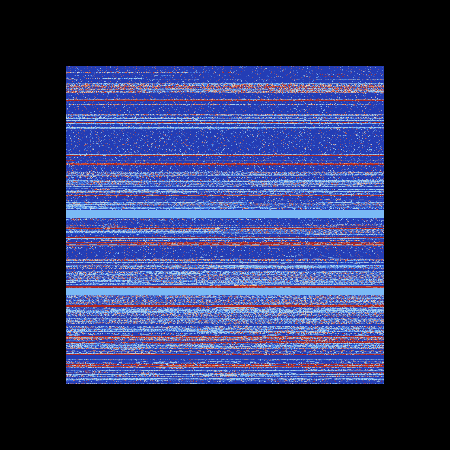
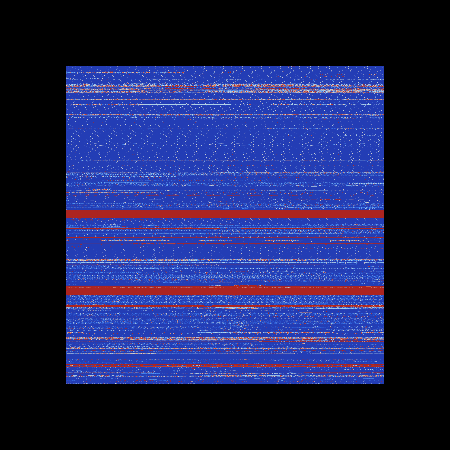
9. ParaView can even load large dumps, for example, this is a screenshot of 1.5Gb dump in big endian and little endian byte orderings respectively:
- Dmitry Vostokov @ DumpAnalysis.org -